
How To Use Suno (AI Music Generator)
Suno AI is a powerful text-to-music generator that can create full songs with vocals and instrumentation in seconds.
You can start for free, then upgrade to Pro ($10/month) or Premier ($30/month) for commercial rights and more credits.
This guide will teach you everything from basic prompting to advanced customization techniques.
What is Suno AI?
Suno AI is an AI-powered music creation tool that allows you to create original songs, lyrics, and instrumentals with just a few inputs. Think of it as the "ChatGPT for music" – you describe what you want, and it creates a complete song for you.
Key Capabilities:
- Generate music from text prompts: Describe a theme, mood, or genre, and Suno will compose an entire song for you
- Create songs with custom lyrics: Add your own lyrics to generate a personalized song
- Mimic musical styles: Recreate the feel of different genres
- Generate music in a wide range of genres and styles
- Extend existing songs or upload audio for the AI to build upon
Method 1: Simple Mode (The Easy Way)
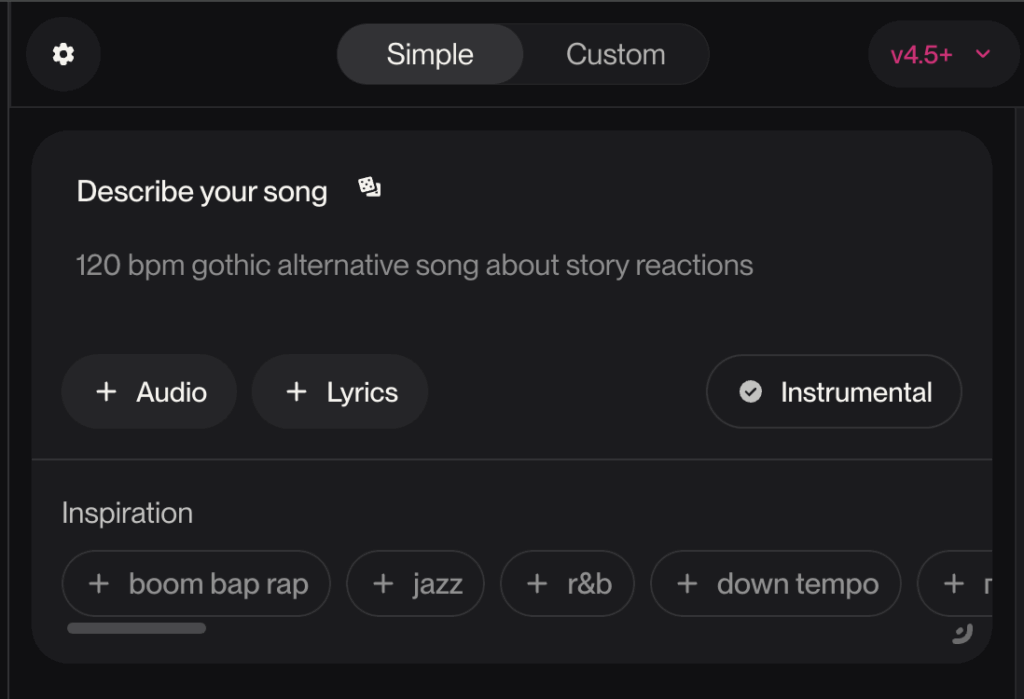
Perfect for beginners who want to create music in just a few clicks.
Step-by-Step Process:
- Navigate to Create Section: After logging in, click the "Create" button
- Turn Off Custom Mode: Make sure you turn off Custom Mode, then enter a song description of up to 200 words
- Write Your Prompt: The more descriptive you are, the more likely the song will be as you envisage. In general, you should indicate the genre of song you want to create together with the mood and general information about instruments and theme
- Click Create: With a single click, Suno's AI will create two versions of your song based on your prompt
- Listen and Choose: Play both versions to see which one you prefer
Crafting Effective Simple Mode Prompts
A good prompt should include these four key components:
1. Genre and Style: Specify the genre to ensure Suno produces music that aligns with your vision. You can be broad (rock, jazz, hip-hop) or specific (indie folk, synthwave, trap metal)
2. Mood and Emotion: Describe the feeling or energy level of the song
3. Theme or Subject: What is the song about?
4. Instrumentation (optional): Mention specific instruments you want featured
Example Simple Mode Prompts:
- "A relaxing beach melody with acoustic guitar and soft vocals"
- "High-energy rock anthem about overcoming challenges"
- "Dreamy indie pop song about first love with piano and strings"
- A cinematic orchestral piece with elements of ambient electronic music
Method 2: Custom Mode (The Advanced Way)
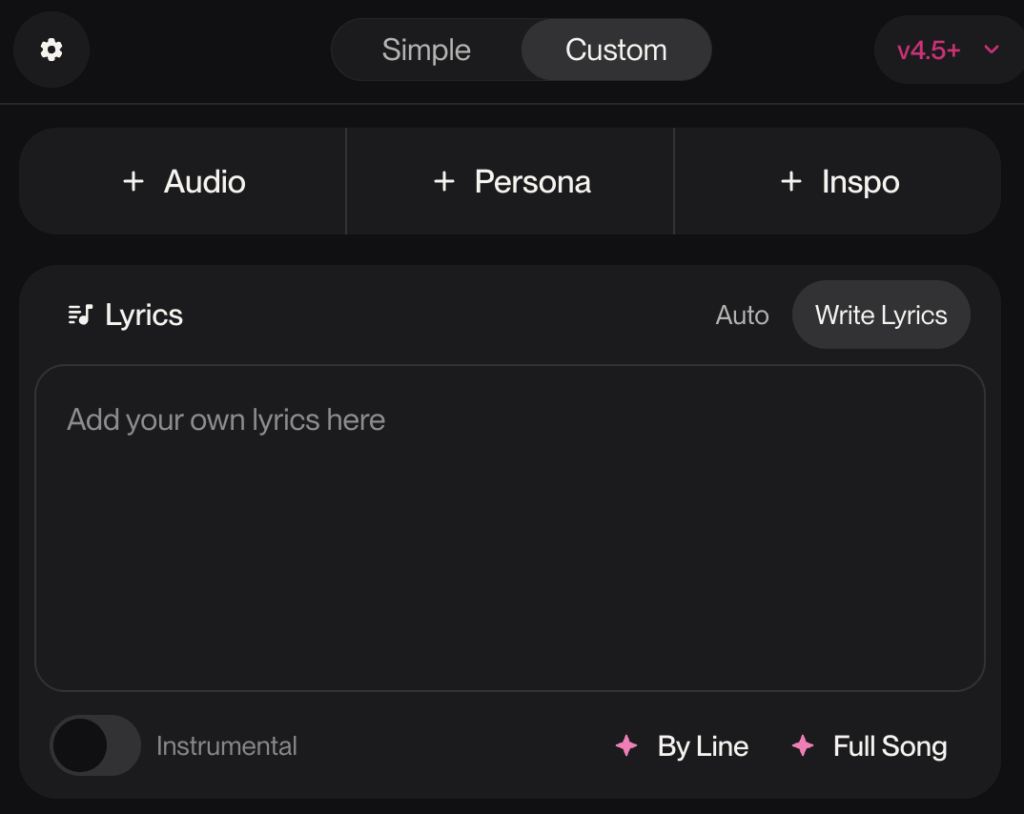
Custom Mode gives you complete control over every aspect of your song creation.
Accessing Custom Mode:
- Go to Create Section and toggle ON Custom Mode
- You'll see several input fields:
- Lyrics box
- Style of Music field
- Title field (optional)
- Instrumental toggle
Writing and Managing Lyrics
Option 1: Use Suno's AI Lyric Generator
- Click Generate Lyrics, and Suno will write the lyrics for you
- You can also click Make Random Lyrics if you want to let Suno do all of the work
Option 2: Write Your Own Lyrics
- If you have obtained your lyrics from an external language model, you can paste them here
- If you have some great rhyming couplets in mind, this is your chance to personalize the song
Option 3: Use External AI Tools
Notice how the lyrics from ChatGPT align more closely with the theme of AI prompting compared to Suno's built-in generator. Consider using ChatGPT, Claude, or other language models for more targeted lyrics.
Structuring Your Song with Metatags
You can also add meta-tags such as [Chorus], [Verse], or [Break] to guide Suno in structuring your song.
Essential Structure Tags:
- [Intro] - Sets up the song
- [Verse] - Main storytelling sections
- [Pre-Chorus] - Builds anticipation before the chorus
- [Chorus] - The catchy, memorable hook
- [Bridge] - Provides a contrast or transition, often appearing later in the song
- [Outro] - Ends the song
Advanced Structure Tags:
- [Hook] - A memorable musical or lyrical part that grabs attention
- [Break] - A section where the main melody or rhythm pauses or changes unexpectedly
- [Interlude] - A short musical or vocal passage between main parts
- [Fade Out] - Signals the song should fade to end
Example Song Structure:
[Intro]
Instrumental opening...
[Verse 1]
Four lines of lyrics here
Following an ABAB rhyme scheme
Each line about 6 words long
Building the story we're telling
[Pre-Chorus]
Two lines that build tension
Leading into the hook
[Chorus]
The catchy main melody
That sticks in your head
Four lines, simple and strong
This is what they'll remember
[Verse 2]
Second verse continues story
Same structure as verse one
New information or perspective
Advancing the narrative
[Bridge]
Something completely different
A contrast to what came before
Often more emotional or intense
Changes the song's direction
[Chorus]
Repeat the main hook
Maybe with slight variations
This is the payoff moment
Leave them wanting more
[Outro]
Wrap up the song
Fade to black
Advanced Formatting Techniques
Vocal Emphasis with Capitalization
Need a line to hit hard, louder, or with more emotional emphasis? Write it in ALL CAPS and add punctuation for extra impact. For example:
- Normal: "I'm never looking back"
- Emphasized: "I'M NEVER LOOKING BACK!"
Capitalization in Suno AI instructs the AI to alter the tone and volume, creating vocals that sound more passionate or intense than the rest.
Sound Effects with Asterisks
You can add sound effects by enclosing them in asterisks. For example: gunshots might make the AI incorporate the sound of gunshots into the song.
Common Sound Effects:
- applause - Sound of applause
- thunder - Thunder sound effect
- birds chirping - Sound of birds chirping
- phone ringing - Sound of a phone ringing
Spoken Word Elements
Using spoken word is a great way to break up singing sections and add storytelling or conversational vibes to your song. To do this, add tags like [Spoken Word], [Narration], or [Spoken Verse]. Alternatively, put the text in parentheses, like (This is our story, beginning to end).
Vocal Techniques
Use the Vowel Extension Technique: If you want a longer, drawn-out vocal, add multiple vowels like this: "lo-o-o-o-ove." This technique works well for melodic sections like the chorus.
Trigger Background Layers with Parentheses: Adding words in parentheses (like this) can create background layers, harmonies, or instrumental effects that make your song richer.
Specifying Musical Style
Basic Style Descriptions
In the "Style of Music" field, you can specify:
- Genre: Pop, Rock, Jazz, Electronic, Country, etc.
- Subgenre: Suno recognizes countless music styles and their variations, moods, and characteristics. For example, if you enter "rock and roll, arena rock, electric guitar intro, progressive, clean, rhythm, riff, hard rock," Suno will create a piece that closely matches these specifications
- Vocal Type: You can also suggest the voice and gender of the singer
- Mood: Upbeat, melancholic, energetic, chill, etc.
Advanced Style Techniques
Artist-Inspired Styles (Without Naming Them)
Since You aren't allowed to input the names of artists or bands (such as Elvis or Coldplay), use descriptive styles instead:
- Instead of "Drake": Hip-hop, trap, laid-back male vocals, ambient beats
- Instead of "Taylor Swift": Pop, Alternative Folk, Emotional, female vocals
- Instead of "The Weeknd": RnB, Dark, Cinematic, male vocals
Genre Blending
Advanced genre-blending capabilities allow users to seamlessly combine elements from multiple genres, such as blending classical music with electronic beats or fusing hip-hop with jazz
Examples:
- "Indie folk meets electronic synthwave"
- "Jazz fusion with trap beats"
- "Orchestral rock with ambient elements"
Persona Feature (Beta)
Personas enable you to replicate the vocals, energy, and atmosphere of an existing track to create a new one.
This allows you to maintain consistency across multiple songs.
Sharing and Downloading Your Music
Downloading Options
Choose the clip or part you want to download > click on the dotted menu icon on right (…) In the menu that opens again choose 'Download Audio' or 'Download Video'.
Sharing Your Creations
If you click the copy icon on a song, a link will be generated so that others can listen to your tune. If you select … next to a tune in the song section, you can download the tune, add it to a playlist or select Share and choose someone specific.
What Suno Is Great For
Suno works well for beginners and hobbyists in these tasks:
- Exploring Ideas: If you need inspiration or want to experiment with different sounds, Suno makes it easy to generate quick musical concepts without requiring technical skills
- Casual and Non-Professional Projects: Whether you are making music for personal enjoyment, small creative projects, social media content, or gifts, Suno provides an effortless way to create engaging tracks
- Enhancing Other Creative Work: From background music for videos to simple educational songs, Suno can be a useful tool for content creators, educators, and hobbyists
Limitations to Keep in Mind
For those targeting professional-quality music, Suno may serve as a starting point rather than a complete solution. You might need to edit the AI-generated output by incorporating additional production layers and editing. While Suno is excellent for quick starts, human creativity remains crucial for crafting professional-grade music.
Songs generated by the AI might sound repetitive or lack the nuance of human-created music. The free version also has limitations on the number of songs you can create and their length.
Getting the Most from Suno
Experimentation is Key
The AI music generation field is rapidly evolving. Whether it's music or images, AI tools can enhance your creative projects. Don't be afraid to:
- Try unusual genre combinations
- Experiment with different metatag combinations
- Test various vocal styles and effects
- Use multiple iterations to refine your sound
Community and Resources
- Join Suno's Discord community for tips and collaboration
- Check the unofficial Suno AI Wiki for updated metatag lists
- Follow Suno's blog for new feature announcements
- Share your creations and learn from other users
Final Thoughts...
Suno AI democratizes music creation, allowing anyone to generate professional-sounding tracks regardless of musical background. Whether you're using Simple Mode for quick inspiration or diving deep into Custom Mode's advanced features, the key is experimentation and iteration.
Start Your Journey:
- Sign up for the free Basic plan
- Experiment with Simple Mode prompts
- Graduate to Custom Mode for more control
- Learn metatags and formatting techniques
- Consider upgrading to Pro/Premier for commercial use
Remember, while Suno is excellent for quick starts, human creativity remains crucial for crafting professional-grade music. Use Suno as a creative partner and starting point, then add your own artistic vision to create truly unique compositions.
The future of music creation is here – and it's more accessible than ever before.