
How to Instantly De-Age Anyone on Video Using AI
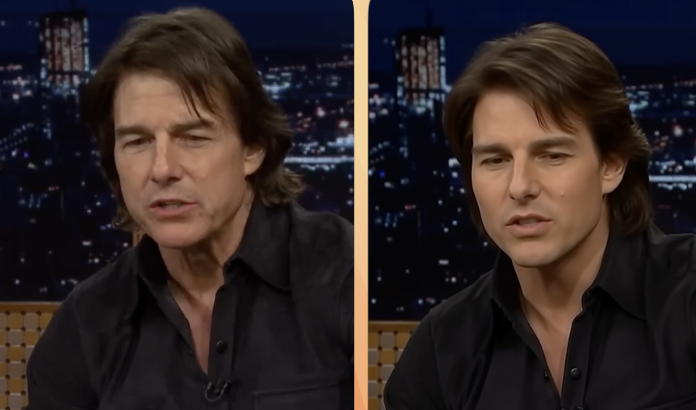
AI has officially entered its Hollywood era.
What used to take massive film studios months of work and millions of dollars in visual effects can now be done in seconds by anyone with an internet connection.
Yes, you read that right — you can now instantly de-age someone on video using AI, and it looks shockingly realistic.
Let’s break down how you can do it yourself in less than 15 seconds.
Step 1: Capture the Frame
Start by taking a screenshot of the person you want to de-age from your video. This single frame will serve as the reference for the AI.
For best results, choose a clear, well-lit frame where the face is fully visible.
You can take this screenshot from any video editor or even a paused video on your computer.
The higher the quality of the frame, the better your final result will look.
Step 2: Use Higgsfield’s “Nano Banana” Model
Next, go to Higgsfield.ai.
Click on Image, then choose the Nano Banana model.
This model specializes in creative image transformations and is perfect for realistic facial edits like de-aging.
Upload the screenshot you captured earlier and enter a prompt like:
“Make this person look [add any age] years younger. Maintain natural facial structure, skin tone, and lighting.”
You can fine-tune the prompt to control how subtle or dramatic you want the effect to be.
Once the AI processes the image, you’ll get a de-aged version of your original frame that looks like it came straight from a movie set.
Step 3: Upscale for Maximum Quality
After generating your de-aged image, go to the Edit tab on Higgsfield and select Upscale.
Upload your new image to increase its resolution and clarity.
This step is important because it ensures that the de-aged version will look sharp and consistent when you integrate it back into your video.
Step 4: Bring It Back to Life with “Animate”
Now for the fun part — turning that static de-aged image into a moving, talking version.
Head to the Video section on Higgsfield and select Animate. Upload both your de-aged image and the original video.
Before hitting generate, make sure you’re using the WAN 2.2 Replace Model, which tells the AI to replace the face in your video with the de-aged version.
Once you click Generate, the AI will seamlessly blend the two, creating a convincing video where your subject looks decades younger — without any manual editing.
Step 5: Review and Refine
The output is often ready within seconds.
You can review it directly on the platform and, if needed, re-adjust the prompt or try a different lighting setup for better results.
The incredible part?
The process is not only fast but also affordable. Instead of thousands of dollars in post-production costs, you can achieve professional-level de-aging for the cost of a few AI credits.